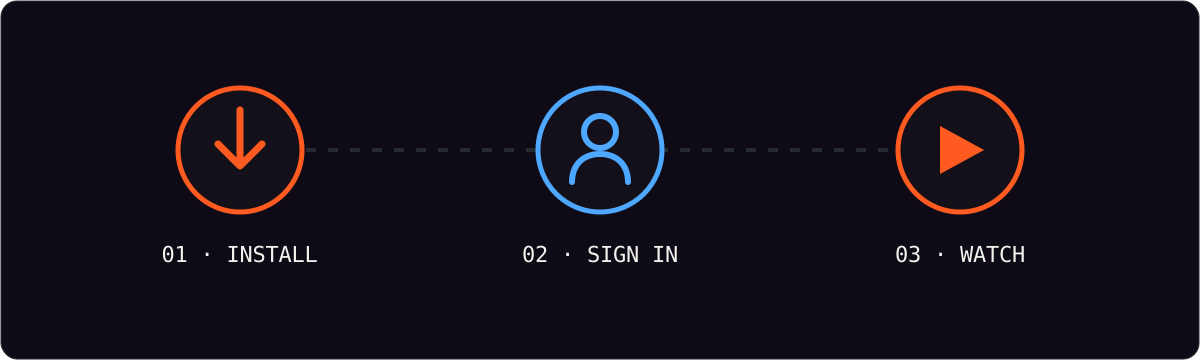
iOS is as straightforward as it gets: one instal from the App Store, the same login as every other device, and AirPlay when you want the big screen. Here is the sequence, start to finish.
Before you install
Have your username, password and playlist URL ready. They arrive by email or WhatsApp within minutes of ordering, and you will paste them into the app rather than typing.
Setup in three steps
- Install an IPTV player from the App Store.
- Sign in with your username and password.
- Paste your playlist URL and let the app load your channels.
AirPlay to your TV
With an Apple TV or a recent AirPlay-compatible set, tap the AirPlay icon inside the player and pick your screen. Playback mirrors to the television while your phone becomes the remote. For a dedicated setup that does not tie up the phone, our Firestick guide covers the alternative.
| Step | Where | Time |
|---|---|---|
| Install the player | App Store | Under 2 minutes |
| Sign in | Inside the app | 1 minute |
| Load the playlist | Account settings | Under 1 minute |
| AirPlay to TV | Playback controls | Instant |
Keeping it smooth
iOS handles HD effortlessly; 4K looks best on the newest iPads and Apple TV hardware. Keep the app updated, and use 5 GHz wifi for the steadiest picture during peak hours.
Frequently asked questions
Is IPTV available on the App Store?
The player apps are. You install a general IPTV player from the App Store and sign in with the credentials we provide.
Will my favorites sync between iPhone and iPad?
Yes, if you sign in with the same app profile on both devices.
Can I watch without an Apple TV?
Yes. AirPlay works with many recent Smart TVs, and you can always watch directly on the phone or tablet screen.