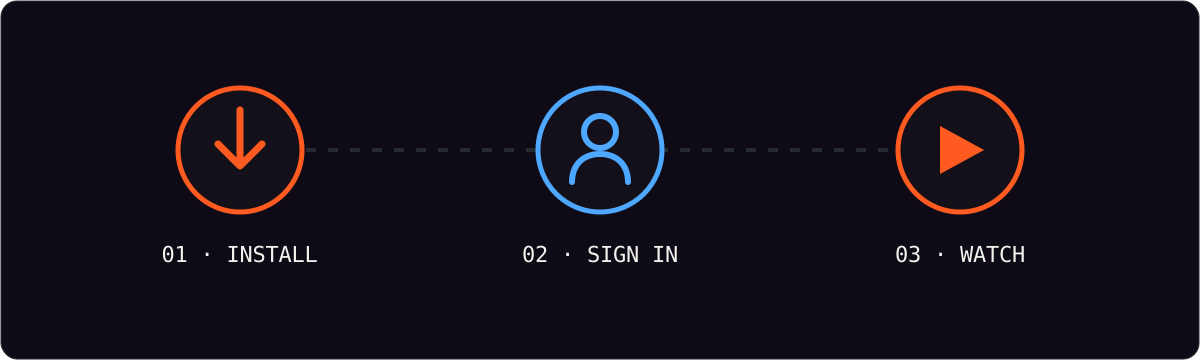
Setting up IPTV sounds technical until you have done it once. In practice it is three steps: install a player app, enter your username and password, and load your playlist. The whole thing takes less time than a cup of coffee — and this guide shows you exactly how, device by device.
Before you begin
You will need three things: a subscription with credentials (username, password and your playlist URL), a stable internet connection, and one of the devices below. That is all. Most people are already holding the device in their hand.
- Your credentials. Sent to your email or WhatsApp after checkout.
- Your playlist URL (M3U). The address the app uses to load channels.
- Your device. Smart TV, Fire TV Stick, phone, tablet or computer.
Android phones and tablets
Open the official app store on your phone, install a player, and open it. Choose the login option, enter your username and password, and paste your playlist URL when prompted. The app builds your channel list automatically — usually finished in under a minute.
iPhone and iPad (iOS)
The process is identical in spirit: install a player from the App Store, sign in with your details, and enter your playlist URL. Everything syncs, so your favorites and viewing progress follow you between devices.
Fire TV Stick
Fire TV is the most popular streaming stick for a reason. Enable apps from unknown sources in the settings menu, sideload a player, then sign in exactly as above. For the visual, key-by-key version see our dedicated IPTV for Firestick guide.
Smart TV (Samsung, LG, Android TV)
Search the television's own store for a player app. On many models the app is already installed; you only need to enter your details. Smart TVs and Android TV boxes behave like an oversized phone — same steps, bigger screen.
Windows and Mac
Desktop players handle the same login and playlist flow. They are a useful fallback when you want to test your setup before configuring the living room, or when a bigger monitor beats a small one.
The setup is always the same three steps. The device only changes which player app you install.
Which player app to use on each device
The steps never change, but the place you install the player does. Here is the short version for each family of devices.
| Device | Where to install | Typical setup time |
|---|---|---|
| Android phone or tablet | Google Play | Under 2 minutes |
| iPhone or iPad | Apple App Store | Under 2 minutes |
| Fire TV Stick | Sideload via unknown sources | 5 to 10 minutes |
| Smart TV (Samsung, LG, Android TV) | TV app store | 2 to 5 minutes |
| Windows or Mac | Official website or store | Under 5 minutes |
Getting a clean picture on the first try
Three habits prevent almost every setup problem. First, copy and paste credentials rather than typing them — a single wrong character is the most common cause of a failed login. Second, connect the device to the 5 GHz wifi band if your router offers one; it is less crowded and handles HD streams better. Third, give the playlist a moment to build the first time; a large channel list can take up to a minute to populate.
Once you are in, use favorites to pin the channels you actually watch. It turns a 20,000-channel list into a personal lineup in a couple of minutes and makes navigation much faster on a remote control.
Frequently asked questions
Do I need a VPN?
No. The service works over a normal broadband connection. Use it in line with the laws that apply where you live.
What if my playlist will not load?
Re-copy the URL from your welcome message, confirm there are no extra spaces, and restart the app. If it still fails, message support with a screenshot and your account email.
Can I set up on more than one device?
Yes — the same login works across your devices, subject to your plan's simultaneous-screen limit.
When something looks wrong
Nine times out of ten the issue is the network, not the app. Restart the router, confirm the wifi, and check the player for updates. If the channel list is empty, re-paste the playlist URL and use the login details exactly — email and password fields are case-sensitive. For the full network checklist see the installation guide, and if it still will not cooperate, support is one message away on contact.
Want to test the whole process before paying? Start a free 24-hour trial — the credentials arrive within minutes and the setup above is all it takes to begin.