IPTV installation guide

Up and running in minutes. Grab your login, install a free player, and enter your details. Follow the walkthrough below for your device — and if you get stuck, our team will finish the setup with you.

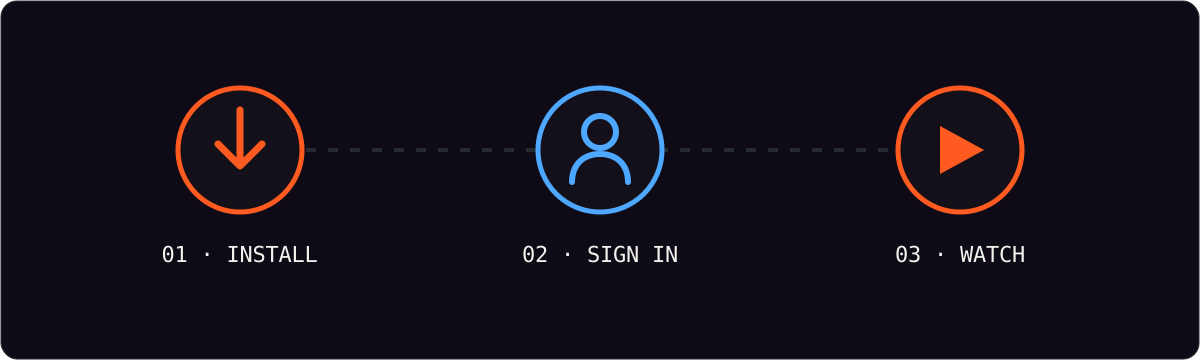
Three-step IPTV setup: install the app, sign in, start watching
Set up in three steps

Works everywhere

Pick your device.
We will show you the way.

AndroidPhone, tablet & box
iPhone & iPadiOS / iPadOS
Smart TVSamsung & LG
Fire TV StickAmazon Fire OS
Windows & MacDesktop players
MAG & STBSet-top boxes

Before you begin, make sure you have your username, password and playlist URL ready. These were sent to you by email or WhatsApp after you ordered.

Step by step

Choose your walkthrough.

IPTV Smarters Pro — Android, iOS & Smart TV

The most popular free player across mobile, TV and desktop. This single flow covers Android phones and boxes, iPhone, iPad and most Smart TVs.

  1. Install IPTV Smarters Pro from the Play Store, App Store or your TV's app store.
  2. Open the app and choose Login with Xtream Codes API.
  3. Give the profile a name, then enter the username, password and server URL from your welcome message.
  4. Wait for the playlist to load, then browse Live TV, Movies or Series.
  5. Open a channel to confirm playback, and add favorites to your list.

Tip: if a channel loads slowly on first open, give it a few seconds to buffer while the stream establishes.

Amazon Fire TV Stick — Downloader sideload

Fire OS does not list every player in its store, so we sideload IPTV Smarters with the Downloader app.

  1. From Fire TV settings, enable Apps from Unknown Sources.
  2. Install and open the Downloader app.
  3. In Downloader, enter the IPTV Smarters APK address provided in your setup email.
  4. Install the downloaded file, then delete the APK to free up space.
  5. Open IPTV Smarters and log in with your Xtream Codes details.

Tip: for the smoothest 4K playback on a Fire Stick, use the 4K Max model on 5GHz Wi-Fi or Ethernet.

Xtream Codes login — any compatible player

Prefer a different app? Any player that supports the Xtream Codes API can use your credentials. You only need three values.

  1. Choose a player such as TiviMate, XCIPTV or GSE Smart IPTV.
  2. Select Add playlist → Xtream Codes API (or "Login with Xtream").
  3. Enter your Username, Password and Server / Host URL exactly as supplied.
  4. Save and allow the app a moment to import channels and VOD.

M3U playlist instead?

Some players ask for an M3U URL rather than Xtream details. Use the full playlist link from your welcome message — it already contains your credentials, so keep it private.

Windows & macOS

Desktop is ideal for large-format viewing and recording. Use a native player for the best experience.

  1. Install a desktop player such as IPTV Smarters for Windows or VLC for macOS.
  2. Choose the Xtream Codes or M3U option, depending on the app.
  3. Paste your credentials or playlist URL and save.
  4. Use the search and category filters to find content quickly.

Samsung & LG Smart TV

Modern smart TVs can run the player directly — no extra hardware required.

  1. Open your TV's app store and install IPTV Smarters (or a similar player).
  2. Launch the app and select the Xtream Codes API option.
  3. Enter your profile name, username, password and server URL.
  4. Wait for the guide to populate and start streaming.

Older TVs may not offer a compatible player — in that case a Fire TV Stick or Android box is the easiest route.

MAG & set-top boxes

MAG and similar STBs use a portal URL rather than a username and password.

  1. Open the box Settings → System Settings → Servers → Portals.
  2. Set the Portal 1 name and paste the portal URL from your welcome message.
  3. Save, then reboot the box so it connects to the portal.
  4. Provide your device's MAC address to support if the portal does not authorise.

Troubleshooting

Quick fixes for
common hiccups.

Most issues come down to the network or a typo in the login. Work through these before contacting support — and see the Marinios IPTV login & app guide for a field-by-field breakdown of where each credential goes.

Double-check the server URL for typos and make sure there are no trailing spaces. Confirm your subscription is active and that you are not trying to use two streams at once on a single-connection plan.

Test your internet speed, switch to 5GHz Wi-Fi or Ethernet, and close other apps competing for bandwidth. On Silver and Gold a VPN can help if your ISP throttles streaming traffic.

This is usually a decoder setting. In your player, change the video decoder to "hardware" or "software", or switch the stream quality from 4K to FHD for that channel.

Channel feeds occasionally change at the source. Note the channel name and report it via chat — our team restores feeds quickly, and the rest of the lineup is unaffected.

Need a hand?

We will set it up with you, step by step.